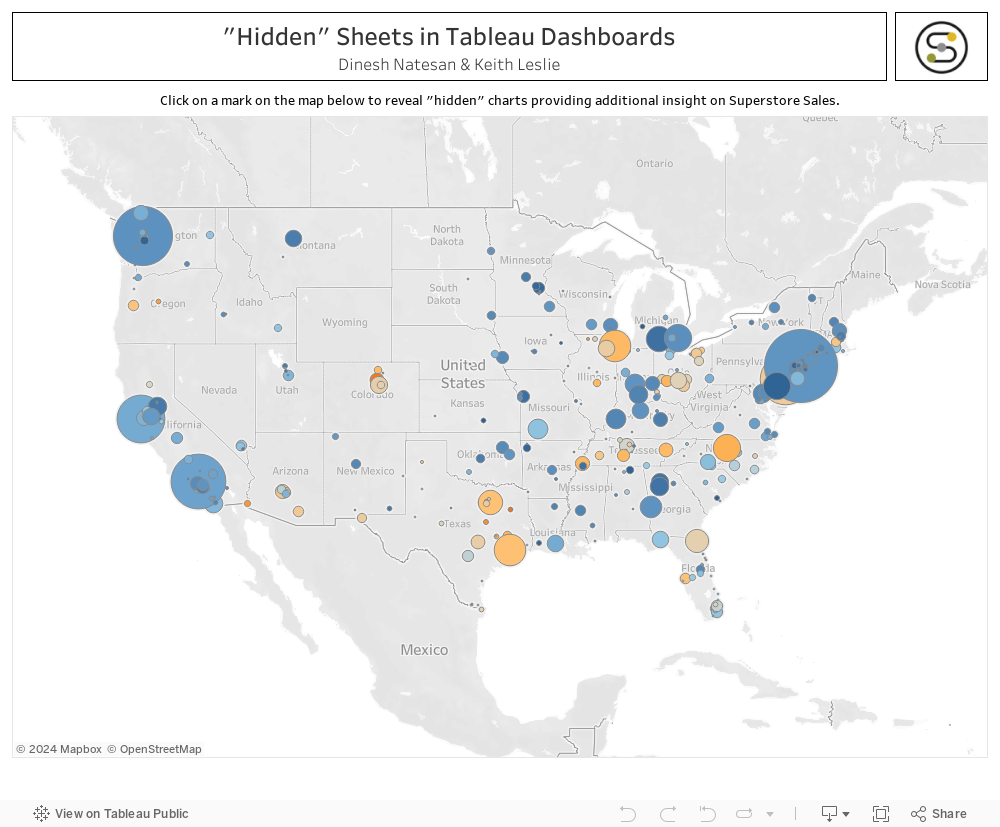
Tableau Tips & Tricks: How to add “Hidden” Sheets to Tableau Dashboards
Introduction
Have you ever built a Tableau Dashboard based on a set of requirements, looked at your final product, and experienced information overload? If you have, you’re not alone. Tableau is a powerful tool that allows you to display a ton of data in a single view, but it’s very easy to go overboard. Dashboards that are too busy can leave your audience overwhelmed or confused, which puts dashboard adoption at risk. Luckily, there are plenty of features in Tableau that allow you to simplify the design of your final dashboard and provide interactive-drilldowns to drive audience engagement.
This blog post will walk you through one such feature: adding “hidden” sheets to a dashboard using action filters. “Hiding” sheets in your dashboards allows you to publish simple, interactive views that audiences can quickly understand and engage with to gain more insight from their data. Plus, they are a ton of fun to build!
Walkthrough
Below are the step-by-step directions for adding hidden sheets to a dashboard. This example uses the ‘Sample – Superstore’ dataset that comes packaged with Tableau Desktop and assumes that you already have created worksheets to add to a dashboard. This example also uses a Tiled layout, but you can easily
- 1.Open a new dashboard and drag a Horizontal or Vertical object into the view.
- 2.Add the worksheet you want to use to “unhide” your “hidden” sheets (moving forward, we will call this worksheet the ‘key’) to this object:

- 3.Add the sheet you want to “hide” inside the Horizontal or Vertical object next to the key:

- 4.Hide the title of the sheet that you want to “hide”:

- 5.Add a dashboard action filter with the following settings:
- I.Source Sheet = key
- II.Target Sheet = “hidden” sheet
- III.Run action on = Select
- IV.Clearing selection will = Exclude all values
- V.Target Filters = whatever fields you will be filtering on
- i. Our example filters on ‘City’. We recommend using the specific fields you’d like to filter on rather than using ‘All Fields’ to optimize performance.

- 6.Click on a mark on your key to engage the action filter. Note that the target sheet is filtered.
- 7.Click on the mark on your key again to “hide” your target sheet.
- I.Click on more marks on your key to “unhide” the sheet with different filtering.
- 8.Bask in the awesomeness of this feature.
Conclusion
That’s how easy it is to “hide” sheets in a dashboard and save your audiences from information overload! The walkthrough above covers a basic dashboard with only two sheets, but you can apply these concepts to all kinds of dashboard layouts. We’ve included a slightly beefed up version of this dashboard below; feel free to download a copy of the workbook and check out how you can use Vertical and Horizontal objects to hide multiple sheets.
Be sure to follow Softcrylic on LinkedIn & check out our website for more Tableau Tips & Tricks, more blog posts from our analytics experts, and information about our products and services.